


In the case of design using “Finite Element Analysis,” the results are displayed on the parts.
Displaying Result Values
In the “Navigator – Results,” you can control whether result values are displayed on the parts and which results are displayed in detail. To do this, use the “Values on Parts” entries in the two Navigator sections.
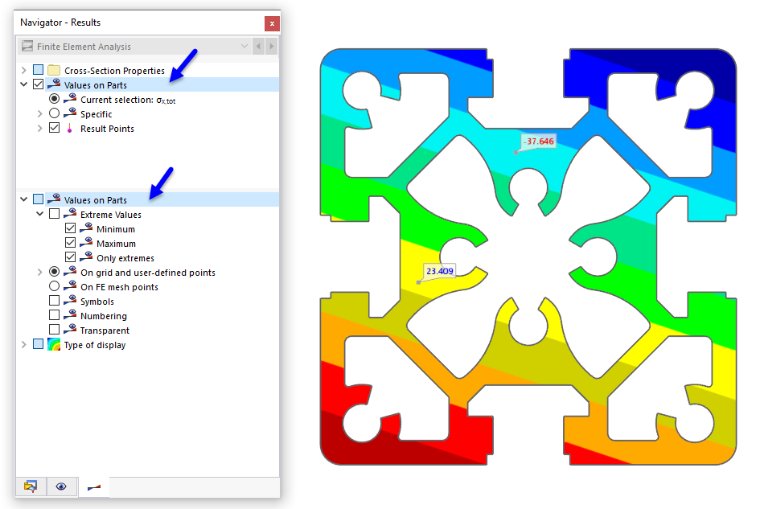
The “Values on Parts” category in the upper section allows you to show or hide the result values. Here, you also specify the result type(s) whose values are displayed.
The “Values on Parts” category in the lower section manages several settings that you can use to control the output and display of result values.
Result Category for Values
In the upper Navigator section, specify the result category used for displaying values.
Current Selection
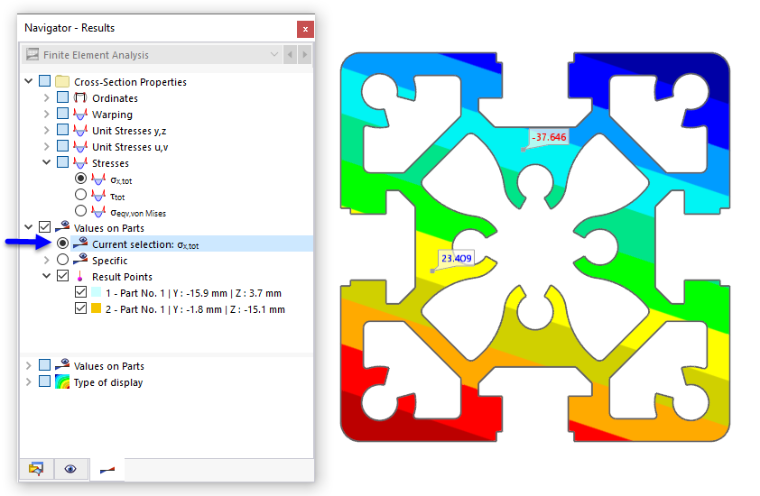
The “Current Selection” option is aligned with the graphical results: In the image above, these are the normal stresses σx,ges. This displays the result values from the current ordinate or stress graphic.
Specific
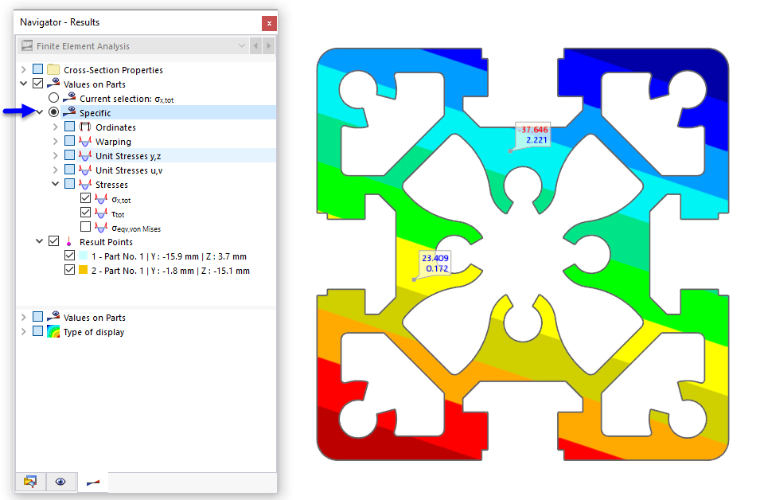
Using the options in the “Specific” selection box, you can individually specify which result values are displayed: ordinates, warping, unit stresses, stresses. The image above shows the values of normal and shear stresses.
Settings for Result Values
In the lower navigator section, you can specify at which points result values are displayed and in what shape they appear.
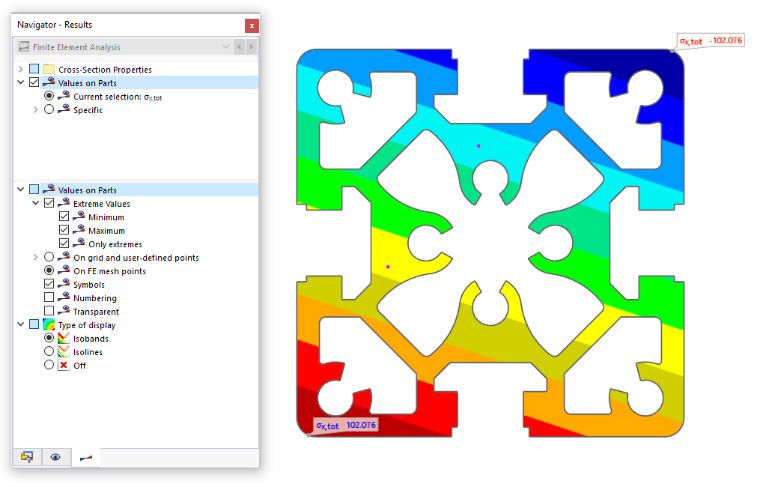
Extreme Values
The “Extreme Values” check box allows you to control whether to only display the extreme values of the results. Depending on the setting, the respective minima or maxima of the parts are shown. The image above shows the minimum and maximum normal stresses σx,ges, which are available within the entire cross-section.
On Grid and User-Defined Points / On FE Mesh Points
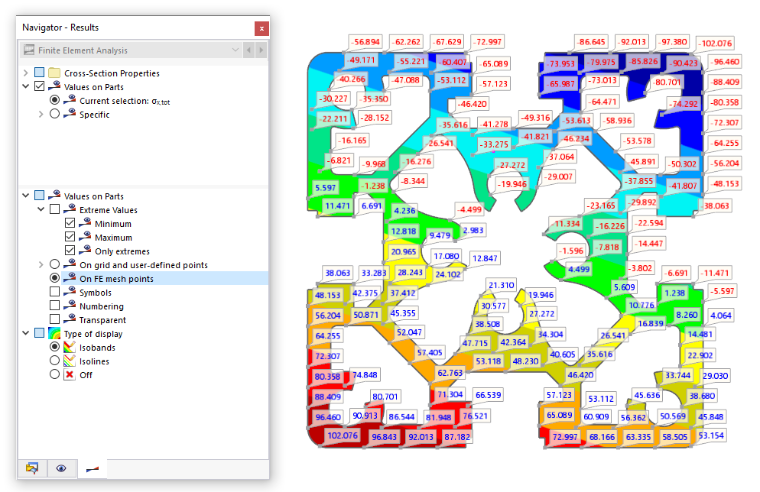
The result values are displayed either at the grid points (in preparation) and user-defined result points or at the FE mesh points. The image above shows the maximum normal stresses σx,ges, which are present at the nodes of the mesh.
You can configure the settings for a result grid of the part in the
Edit Part
dialog box (in preparation). On the other hand, the user-defined result points are managed under Result Objects. You can also set result points directly using the
 button.
Symbols / Numbering / Transparent
The last three check boxes in the lower section “Values on Parts” control how the values are displayed.
- Symbols: The result type (u, ωSC, σx,tot) is displayed.
- Numbering: The number of the grid point R, FE mesh point N, or result point U is displayed.
- Transparent: The values are displayed without a border or background.
Type of Display
The results can be displayed as isobands or isolines, with colors assigned according to the scale in the control panel. Setting the display mode to “Off” allows you to output the raw result values: The isobands or isolines are hidden, showing only the result values at the grid or FE mesh points.
Adjusting Color and Font of Result Values
To customize the colors and font of the result values, select the Display Properties function in the Options menu. In the Display Properties dialog box, open the Results category. Select the Values on Parts entry.
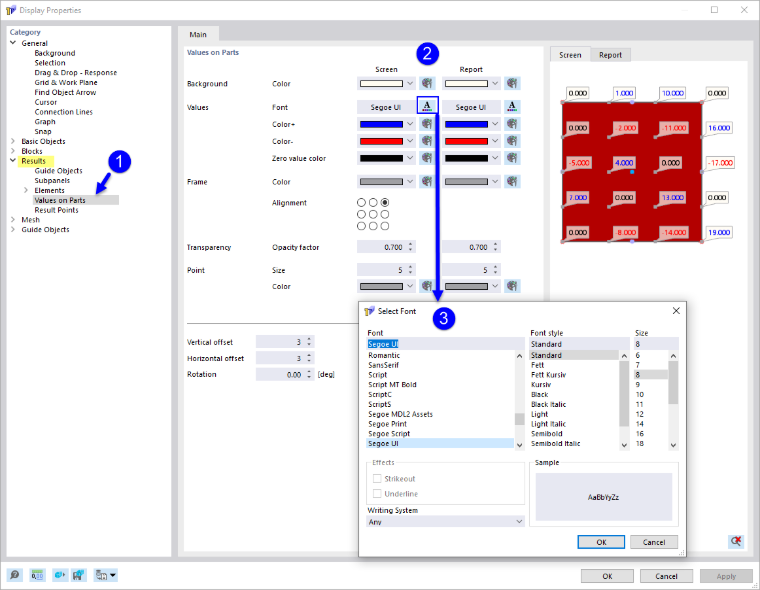
In the “Values on Parts” section, you can now customize the background and border colors, the font, the layout, and the transparency. The changes are displayed in the preview on the right.
Separate settings are available for the “Screen” and the “Report”. If you click the
 button, the changes will be synchronized for both output types.