


You can adjust the length of a line or an element in a dialog box. This way, you can not only change the length in general, but also extend the line or the element to another object.
Right-click the line or the element to open the object's shortcut menu. Then, select the Extend/Trim Line or Extend/Trim Element function.
The editing functions are also accessible in the Tools menu via the options Modify Lines → Extend or Trim Lines or Modify Elements → Extend or Trim Elements.
You can also use the list button
 or
or
 in the CAD toolbar.
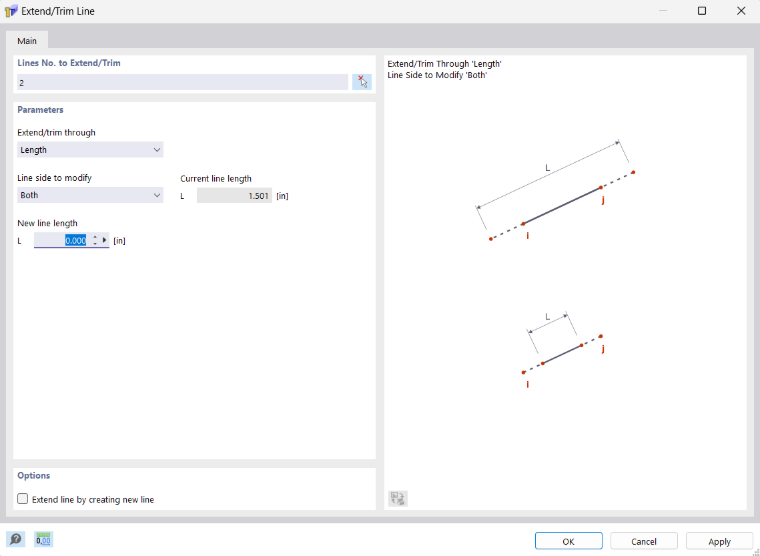
The following options are available in the "Extend/trim through" list:
- Length: Changes the total length of the line or element to the user-defined dimension.
- Offset: Extends/shortens one side or both sides of a line or an element by the offset dimension Δ. A negative value shortens the side(s).
- To Next Element/Line: Results in an extension to the nearest element or line that intersects with the straight line of the element or line.
- To Selected Element: Extends the line or element to another element whose number is to be specified or graphically defined with the
 button. The perpendicular point on the element is defined by the "Distance".
- To Selected Line: Extends the line or element to another line whose number is to be specified or graphically defined with the
button. The perpendicular point on the line is defined by the "Distance".
- To Location: Extends the line or element to any location whose coordinates are to be specified or graphically defined with the
button.
- To Selected Point: Extends the line or member to a point whose number is to be specified or graphically defined with the
button.
In the "Line side to modify" or "Element side to modify" list, specify the direction in which the change in length is to be made:
- Both: results in an adjustment on both sides. Either the total length L is related to the line or element center, or the line or element is extended on both sides by the offset Δ, or up to the next two lines or members.
- Start: The length of the line or element is only adjusted on the side of the start point.
- End: The length of the line or element is only adjusted on the side of the end point.
Furthermore, lines can be extended using the Extend graphically function. This function is available in the CAD toolbar via the
 button. Clicking on the left side of the line to be extended extends it to the left; clicking on the right side extends it to the right—in each case, up to the intersection point with the next line. If you hold down the ALT key while doing this, the existing line is not extended; instead, a new line is created up to the intersection point.
Furthermore, lines can be shortened using the Trim graphically function. This function is available in the CAD toolbar via the
 button. Clicking on the left side of the line to be shortened shortens it to the left; otherwise, it is shortened to the right—in each case up to the intersection point where it intersects with the next line.