The Design Supports and Deflection tab is available in the editing dialog box for a member or member set when the object's design properties are activated (see the image Activating Design Properties for Member). Design supports essentially have two features:
- Defining the boundary conditions for the design of “compression perpendicular to the grain”
- Segmenting the member or member set for the deflection analysis in timber design
You can specify the parameters for the deflection analysis of surfaces in the Deflection tab of the editing dialog box.
Members
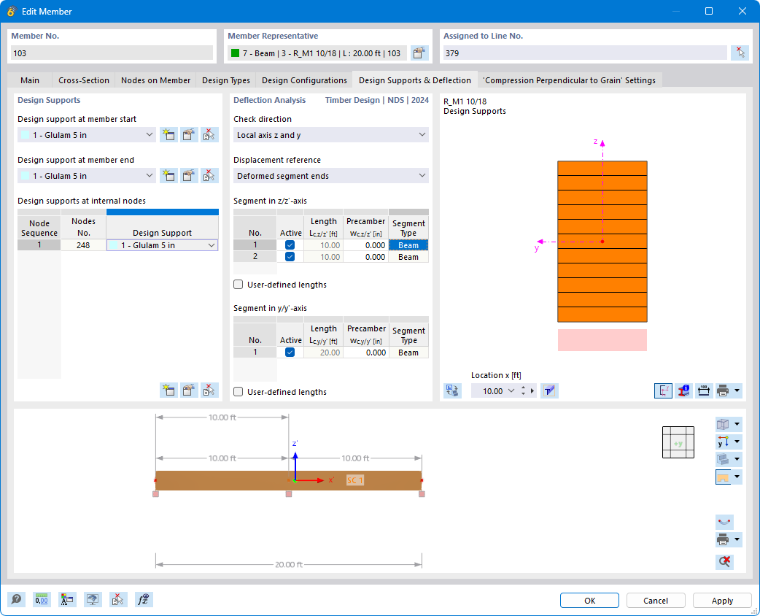
Design Supports
As mentioned, design supports are required for the design of “compression perpendicular to the grain” at the support. You can define specific parameters for this design check in the Compression Perpendicular to Grain tab. Design provides the ability to segment members and member sets for deflection analysis.
You can assign design supports not only to the member start and end but also to internal nodes. Therefore, the table automatically presets nodes of the "Node on Line/Member" type as well as standard nodes between members of a member set.
Select a design support from the list or create a new type using the
 button (see the image New Design Support). Use the
 button to change the selected type, and the
 button to select a design support already assigned in the model.
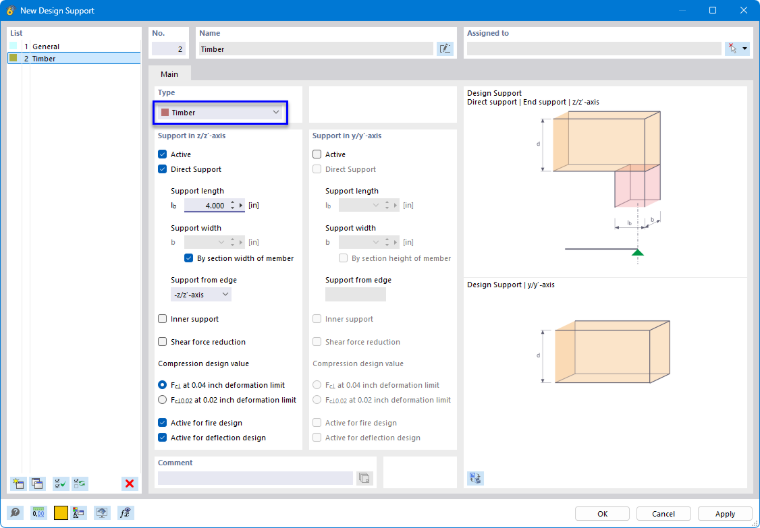
The dialog box is tailored to the standard. If you have assigned a timber material to the member or member set, the Timber type is preset. Otherwise, select this option from the list.
Using the two Active options, you can control the directions (z-axis and/or y-axis) for which a design support is present. For example, if the member is rotated by 90°, you can deactivate the “Support in z/z-axis” and instead set it to active for the y-axis.
If you do not want to perform design of “compression perpendicular to the grain”, but the design support is used to segment the member or member set for the deflection analysis, deactivate the Direct Support option: This means that no entries regarding support geometry or location are necessary; the support serves solely for segmentation for the deformation analysis. As an alternative, you could also select the design support “General” type, for which the support pressure is not analyzed.
The support length is always related to the actual beam. In the dialog graphic, it is displayed—starting from the structural system or the node—half in the positive x-direction of the member and half in the negative x-direction.
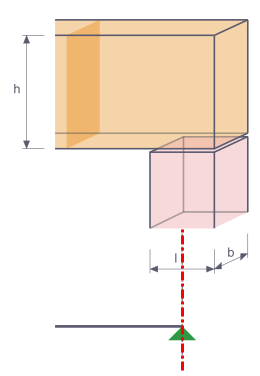
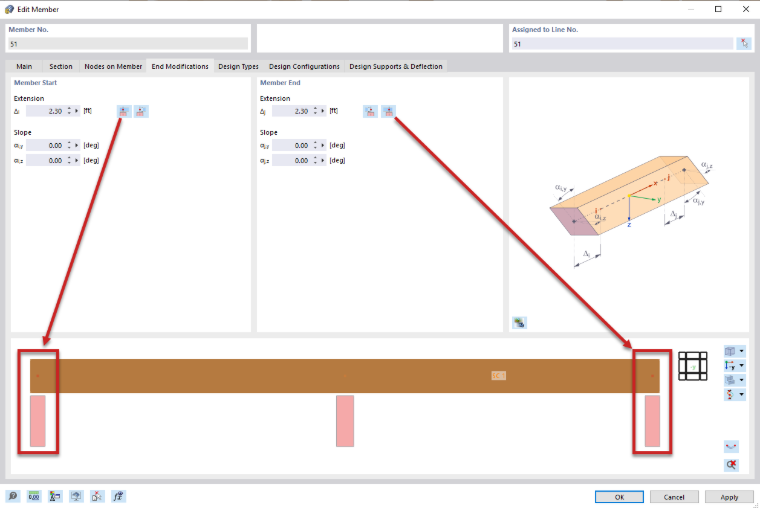
Using the Support from edge option, the program automatically determines whether a design support is subjected to compression or tension forces. Accordingly, the design of “compression perpendicular to the grain” is only performed in the case of compression forces.
If a design support acts on an intermediate support, select the Inner support check box. Depending on the design standard, this specification is included in the determination of the effective support area.
The Shear force reduction option performs the shear force design at the support using the governing shear force. In this case, the shear force is considered in the design at a specific distance from the edge of the support. This distance depends on the design standard. This assumes that the force acts on the opposite side of the support, that is, typically on the top of the beam.
If the transversal compression stresses are too high, they can be absorbed using reinforcement with bolts (only for EN 1995-1-1 and direct support). To do this, select the Stiffening elements check box. In the Stiffening Elements tab, you can then define the properties of the fully threaded screws.
The Active for fire design check box allows you to control whether the support pressure check should also be performed in the event of a fire situation.
If a design support is not to be considered for segmentation, deselect the Active for deflection design option.
Deflection Analysis
Segments and Reference Lengths
The right-hand tab of the Design Supports and Deflection tab lists the segments that result from assigning the design supports for the respective directions of the deflection analysis. For each design location in a segment, the displayed length Lc is used as the reference length for determining the limit value.
If you want to change the automatically determined reference lengths (for example, because the reference length of a curved member differs from the segment length), select the “User-defined lengths” check box. The values can then be edited. However, these user-defined lengths are not adapted automatically if you subsequently change the member length in the model.
Limit Values for Beams and Cantilevers
The deflection limit values for beams supported at both ends and cantilever beams are managed in the Serviceability Configurations. The corresponding limit value is applied to each segment during the design checks, depending on the arrangement of the design supports: A segment with design supports on both sides or without design supports is assumed to be of the beam segment type; a segment with a design support on one side is assumed to be a cantilever.
Check Direction
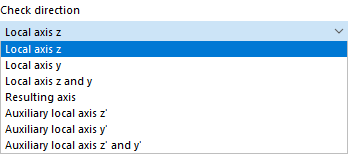
Use the “Check direction” to specify which deflection result values are to be checked. The list includes the local axes y and z, the resultant deflection, and the local auxiliary axes y' and z' for selection. The segments below adjust accordingly.
Displacement Reference
Using the options in the “Displacement reference” list, you can influence the deflection values to be checked for the design:
- Undeformed system: The local deformation values uy and uz are taken directly from the results.
- Deformed segment ends: For the design checks, the deflection values are reduced by the deformation values of the start and end nodes, so that only the local deflections are checked.
Precamber
You can account for precamber in the design of each segment, thereby reducing the deflection value. For beam segments, precamber is assumed to be a single-wave shape; for cantilever segments, it is assumed to be a linear distribution. Enter the precamber wc,z or wc,y as a positive value if it is directed opposite to the local member axis z or y, respectively. For the design of the resultant direction, the components of the precamber are converted to the resultant direction.
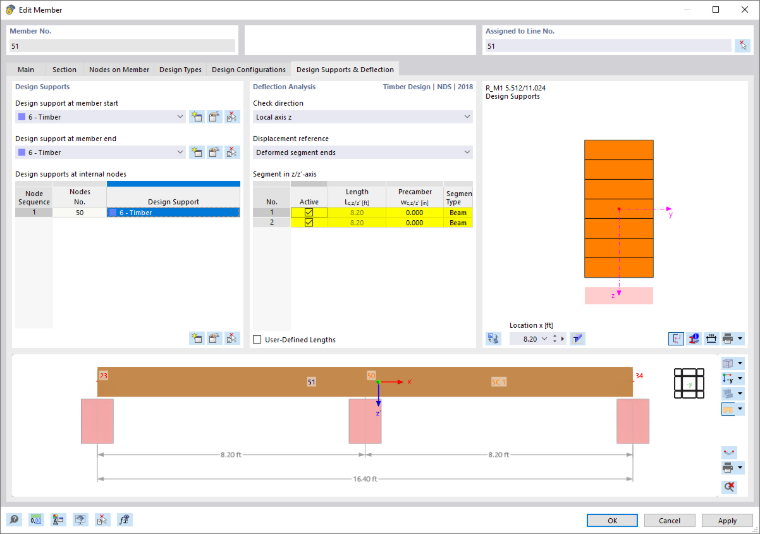
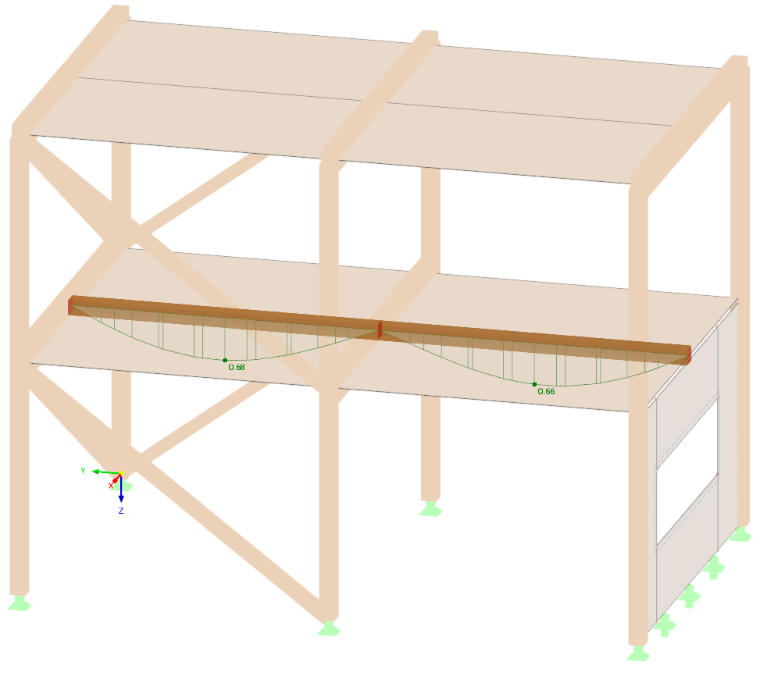
Example: In the following image, no design support was defined at intermediate node No. 50. Consequently, the program recognizes only one segment, and the reference length corresponds to the member length.
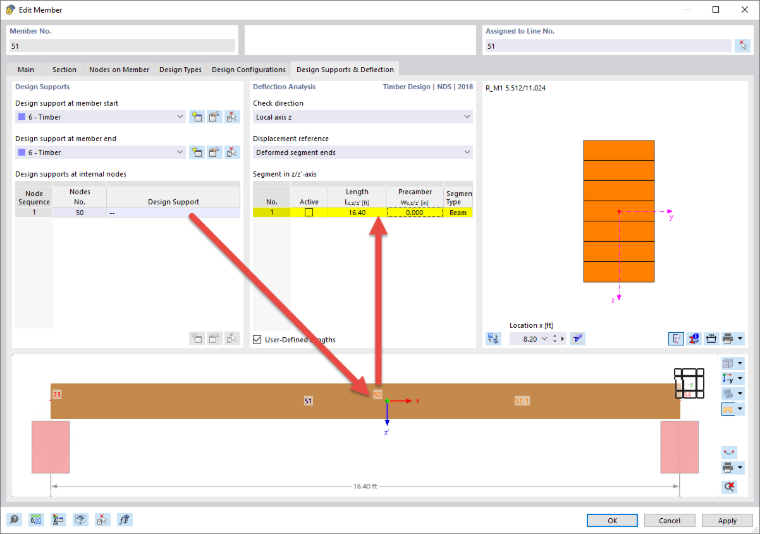
If a design support is defined at the intermediate node, two segments are recognized. The reference length adjusts accordingly.
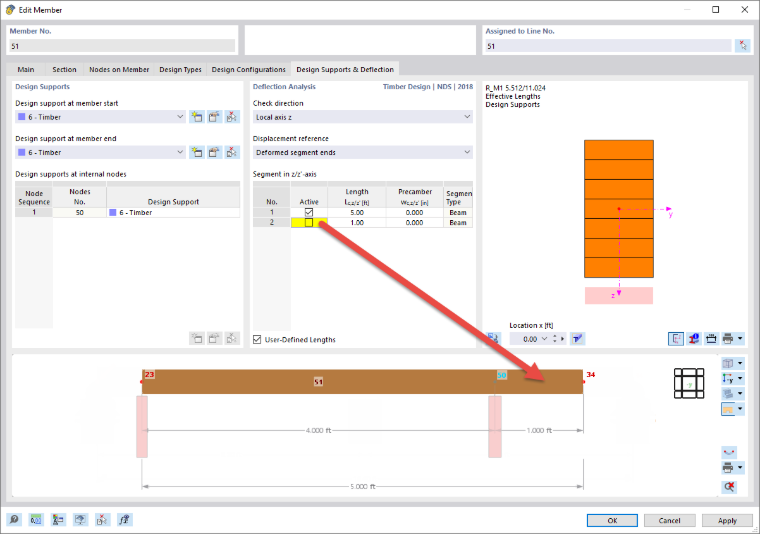
If you do not want a segment to be analyzed for deformation, you can deactivate it using the check box:
Stiffening Elements
This tab is available when performing a design according to EN 1995-1-1 if you have checked the Elements option in the “Main” tab. Here you can define fully threaded screws that are considered as transversal compression stiffening elements in the design of “compression perpendicular to the grain”.
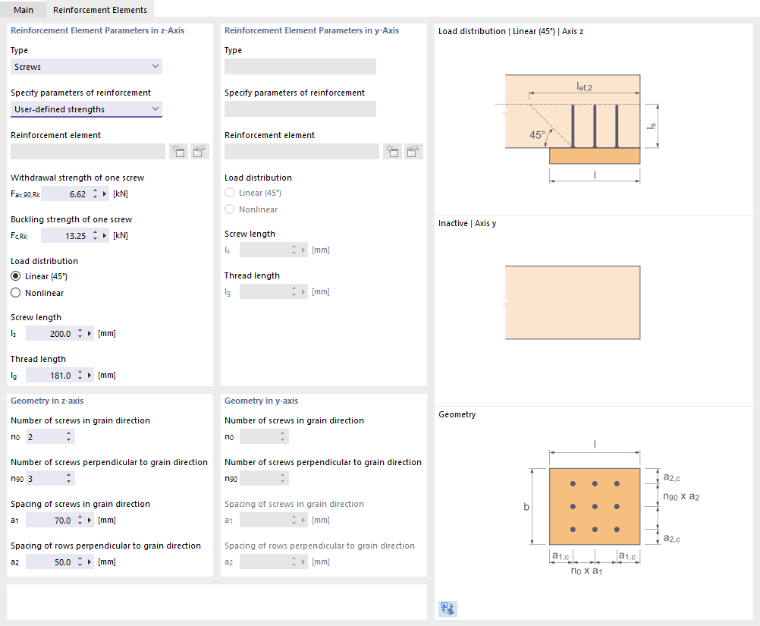
Currently, only “Screws” type of the stiffening elements is supported. Specify the strengths and screw lengths according to the manufacturer’s specifications. You can also use the properties of stiffening elements that you have defined as timber screws. To do this, use the corresponding option in the list.
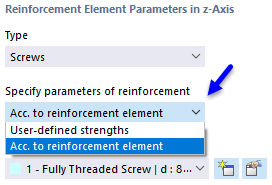
Select a predefined timber screw or create a new type using the
button.
In the “Geometry in z-/y-Axis” section, specify the number of bolts and their arrangement.
The bolts are designed for pressing-in and buckling. In addition, the shear capacity in the plane of the screw tip is designed. The angle of dispersal of the “load distribution” can be modeled linearly at 45° or—as described in [1]—nonlinearly (see also the dialog graphic).
Surfaces
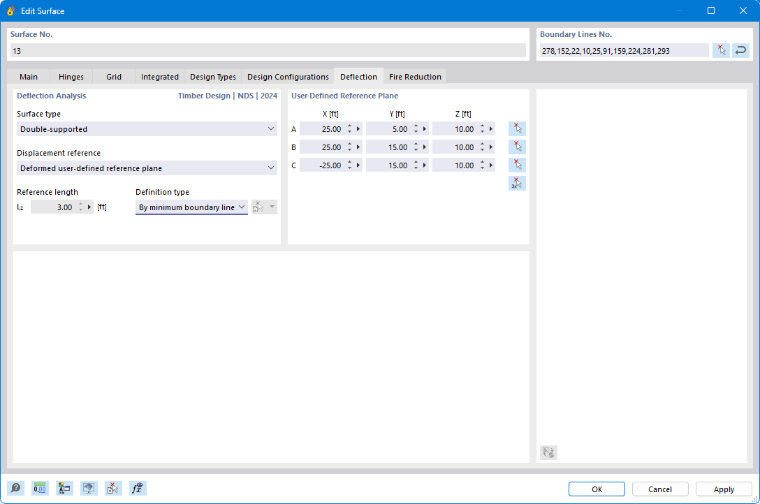
For ultimate limit state of surfaces, the stress components are analyzed. The design checks are based on the material properties and surface thicknesses. For the serviceability limit state design, however, surface-specific data is required. You can enter this data in the Deflection tab of the “Edit Surface” dialog box.
Surface Type
Use the surface type to specify which limit values of the deflection are applied in the design check. Two options are available in the list:
- Double-supported
- Cantilever
The limit values are stored in the Serviceability Configurations dialog box for different design situations of surfaces with single- or two-sided support.
Displacement Reference
The displacement reference controls which reference model is used for the design of deformations. The list contains three options:
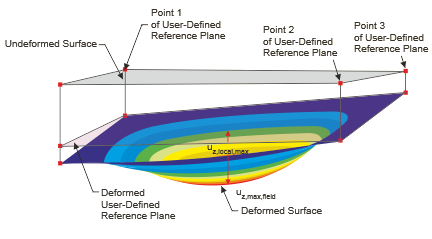
- Deformed user-defined reference plane: If the supports exhibit significantly different displacements, you should specify an inclined reference plane for the displacement to be designed, uz. Define the plane in the “User-Defined Reference Plane” section using three points of the undeformed structural system. RFEM calculates the deformation of the three definition points, defines the reference plane through these shifted points, and uses the related maximum deformation uz for the design.
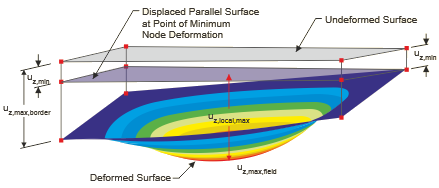
- Parallel surface at the point of minimum nodal deformation: This option is recommended when the surface has a compliant support. The maximum deformation uz is related to a reference plane shifted parallel to the undeformed structural system, which RFEM defines through the node with the smallest displacement value uz,min.
- Undeformed structural system: The local deflections uz are taken directly from the results and used for the design check.
Reference Length and Definition Type
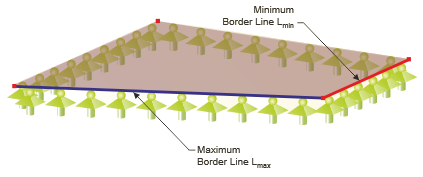
The deflection limit value depends on the reference length Lz. For the definition type options “By maximum boundary line” and “By minimum boundary line” (default), RFEM determines the length of the longest or shortest edge from the surface geometry and automatically sets the reference length. If you want to define the reference length, select the “Manual” definition type from the list and then enter the value.
Elastic Support
The reference model is based on the assumption that the edges of the surface are rigidly supported. If a surface or surface set is elastically supported by a member element, the deformation analysis cannot be performed using the displacement reference for the plane described above. In this case, the following procedure is recommended:
- Create a line along the relevant deformation.
- Assign a member of the Result Beam type to the line.
- In the member properties, define a small integration width, for example, 1 cm. This ensures that the local surface deflections uz are integrated as member results.
- Assign a serviceability configuration for members with the appropriate design parameters to the result beam. Disable the design for load capacity by selecting the -- option from the list when assigning the ultimate configuration.
The deflection of the surface is thus analyzed in the shape of a member analysis.
Compression Perpendicular to Grain
The 'Compression Perpendicular to Grain' Settings tab is available in the editing dialog box for a member or member set if a direct support is present at a design support. Here, you can describe the support conditions of a spatial structural system for nodes of the member or member set that are implemented in the model without nodal supports—for example, members with an (indirect) support on another member.
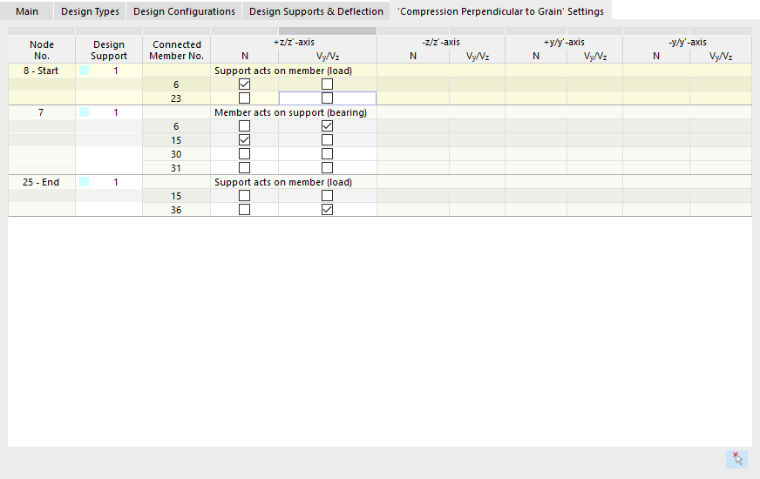
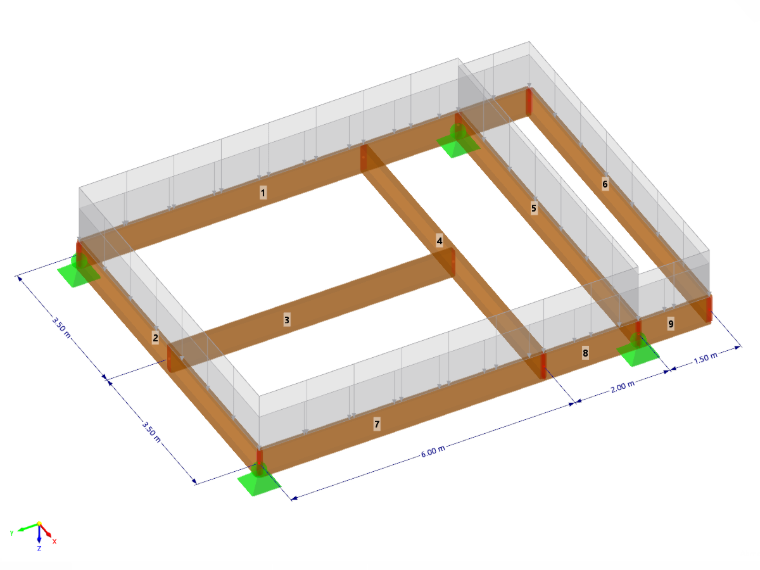
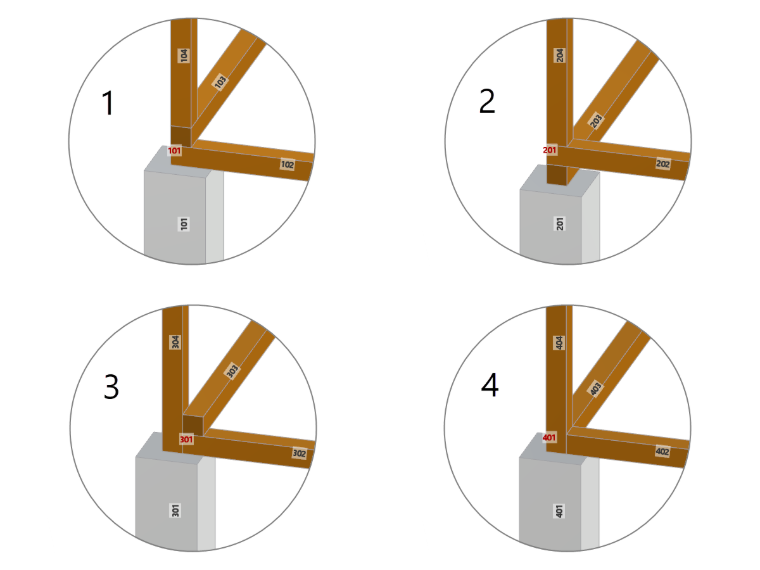
The compressive force required for the design of “compression perpendicular to the grain” is determined from the internal forces of the members connected to the nodes. In the structural model, all members meet at a node, as shown in the following example.
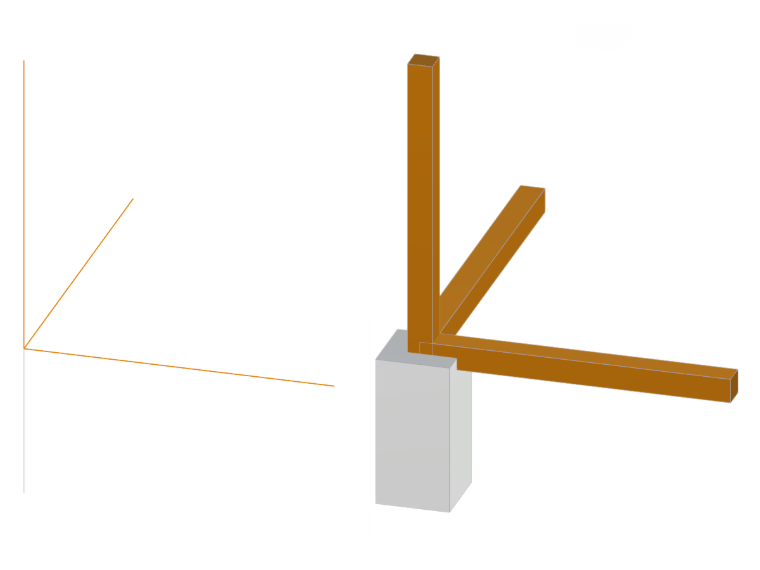
This simplification usually does not correspond to actual conditions: Not every member transfers its normal or shear force directly to the support; instead, it exerts a force on another member, which in turn transfers this force to the support via its internal forces. This results in a wide variety of support configurations.
You can use the check boxes to control which members generate shear forces and thus clearly define the support configuration. This is described in a technical article using an example: