


The Rhino / Grasshopper-RFEM plugin is not installed automatically with RFEM 6 and must be installed manually. The installation procedure depends on the installed version of RFEM 6. To install the plugin, RFEM 6 and Rhino must already be installed on the computer.
RFEM Versions 6.06.0002 to RFEM 6.16.0001
From RFEM versions 6.06.0002 to 6.16.0001, the Rhino / Grasshopper-RFEM plugin is installed using the Rhino Package Manager.
Supported Rhino versions:
- Rhino 7 (as of Rhino version 7.34)
- Rhino 8
- When using Rhino 7 or Rhino 8 in a .NET Framework environment, use the plugin versions starting with “7”. When using Rhino 8 in a .NET Core environment, use the plugin versions starting with “8”.
Installation via Rhino Package Manager
- Open Rhino.
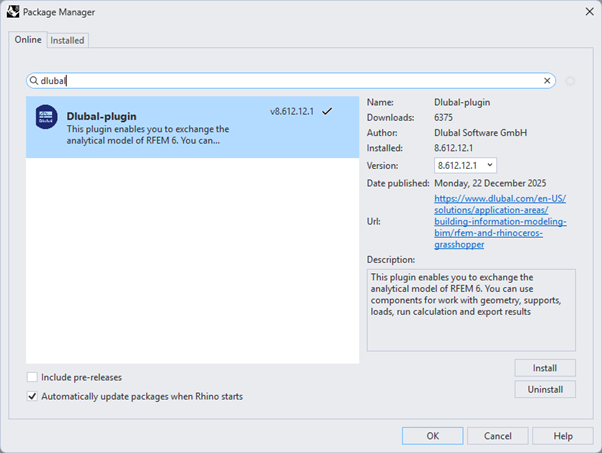
- Open the Package Manager.
- Search for Dlubal plugin.
- Select the plugin version corresponding to your Rhino version.
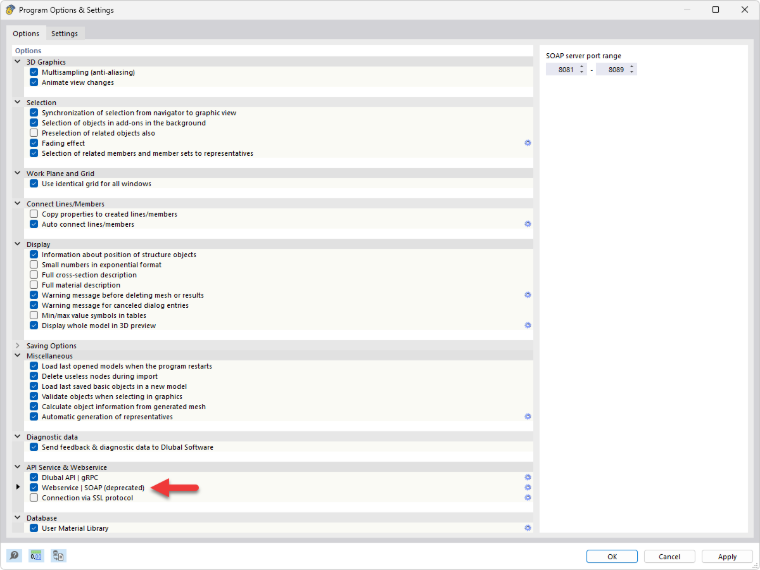
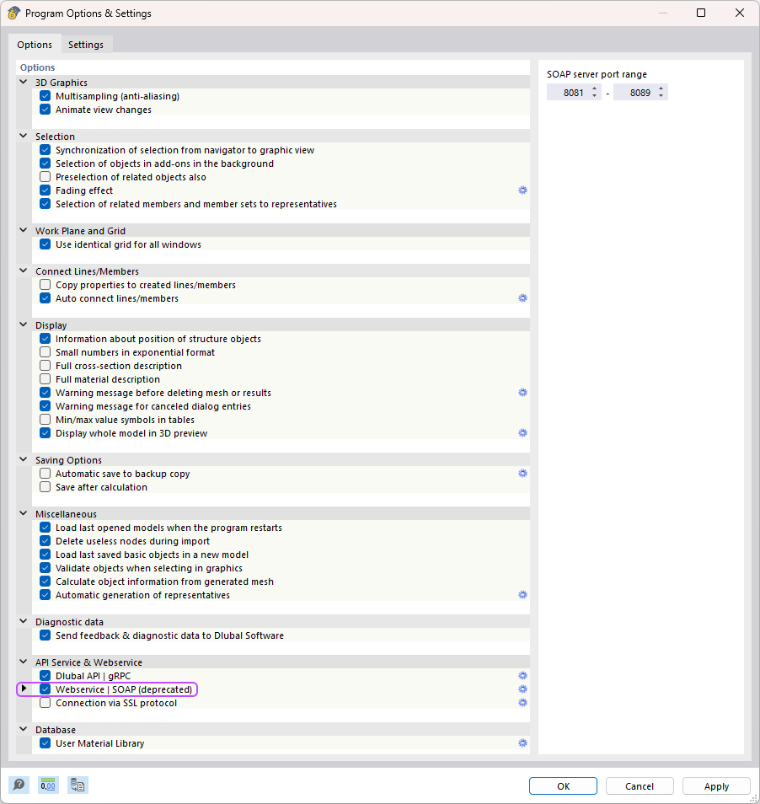
- Enable Webservices in the Dlubal program options.
The plugin version numbering corresponds to the RFEM version.
Example: RFEM 6.06.0002 → Dlubal plugin 6.606.2.1
Ideally, the plugin version matching the installed RFEM main version should be used. If this version is not available, the next older compatible version can be installed.
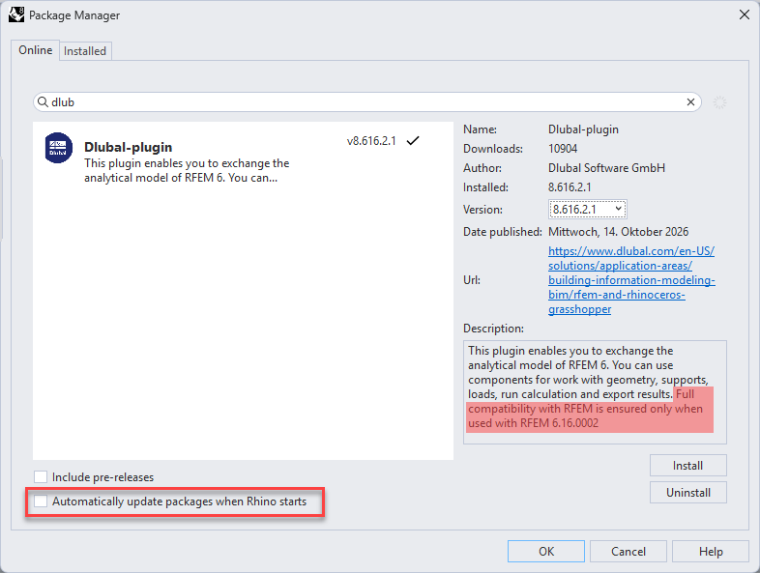
As of RFEM 6.16.0002
With version 8.616.2.1, the Dlubal plugin was migrated from the SOAP API to the gRPC API. Due to this migration, the .NET Framework-specific solution can no longer be offered. The plugin now only runs in a Rhino 8 and .NET Core environment. Additionally, we recommend using the plugin only with the corresponding RFEM 6 version. This information can be found in the description in the Package Manager.
To better monitor the compatibility of the plugin and RFEM versions, we recommend disabling automatic updates in the Package Manager.
RFEM Versions up to and Including 6.06.0001 (Legacy)
For RFEM versions up to and including 6.06.0001, only Rhino 7 is officially supported.
Installation Steps
- Close Rhino if it is running.
- Navigate to the following folder: C:\Program Files\Dlubal\RFEM 6.xx\tools\RhinoPlugin
- Run the file DlubalRfem6Plugin.rhi by double-clicking it.
- Start Rhino.
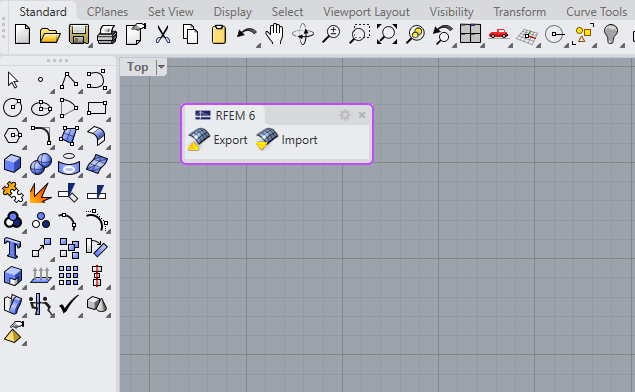
After installation, the plugin should be available in both Rhino and Grasshopper.
Rhino
Grasshopper

Enabling Webservice
To enable data exchange between Grasshopper and RFEM, Webservice must be activated in RFEM:
- Open RFEM.
- Go to Options → Program Options.
- Enable Webservice.
Switching from the Old Installation Method to the Package Manager
If the plugin was previously installed manually, the existing plugin folders must be removed before installing via the Package Manager.
Depending on the installation type, the plugin folders may be located in one of the following paths:
Local Installation
C:\Users\username\AppData\Roaming\McNeel\Rhinoceros\7.0\Plug-ins